

What it solves
Craft gives entries, categories and users a trashed state you can recover from. Assets are the exception: deleting one removes the underlying file immediately, and nothing in the control panel brings it back. A misclick in the Assets index is permanent.
Asset Vault closes that gap. When an asset is deleted, its file is copied into a hidden .vault/ path inside the same volume first, together with everything needed to recreate the asset — title, alt text, focal point and custom field values. From the Asset Vault section you can put it back, delete it for good, or leave it to expire.
Requirements
| Craft CMS | 5.0.0 or newer |
| PHP | 8.2 or newer |
| Other plugins | none |
Installation
composer require kernpfad/craft-asset-vault
php craft plugin/install asset-vault
After installation an Asset Vault entry appears in the control panel sidebar:
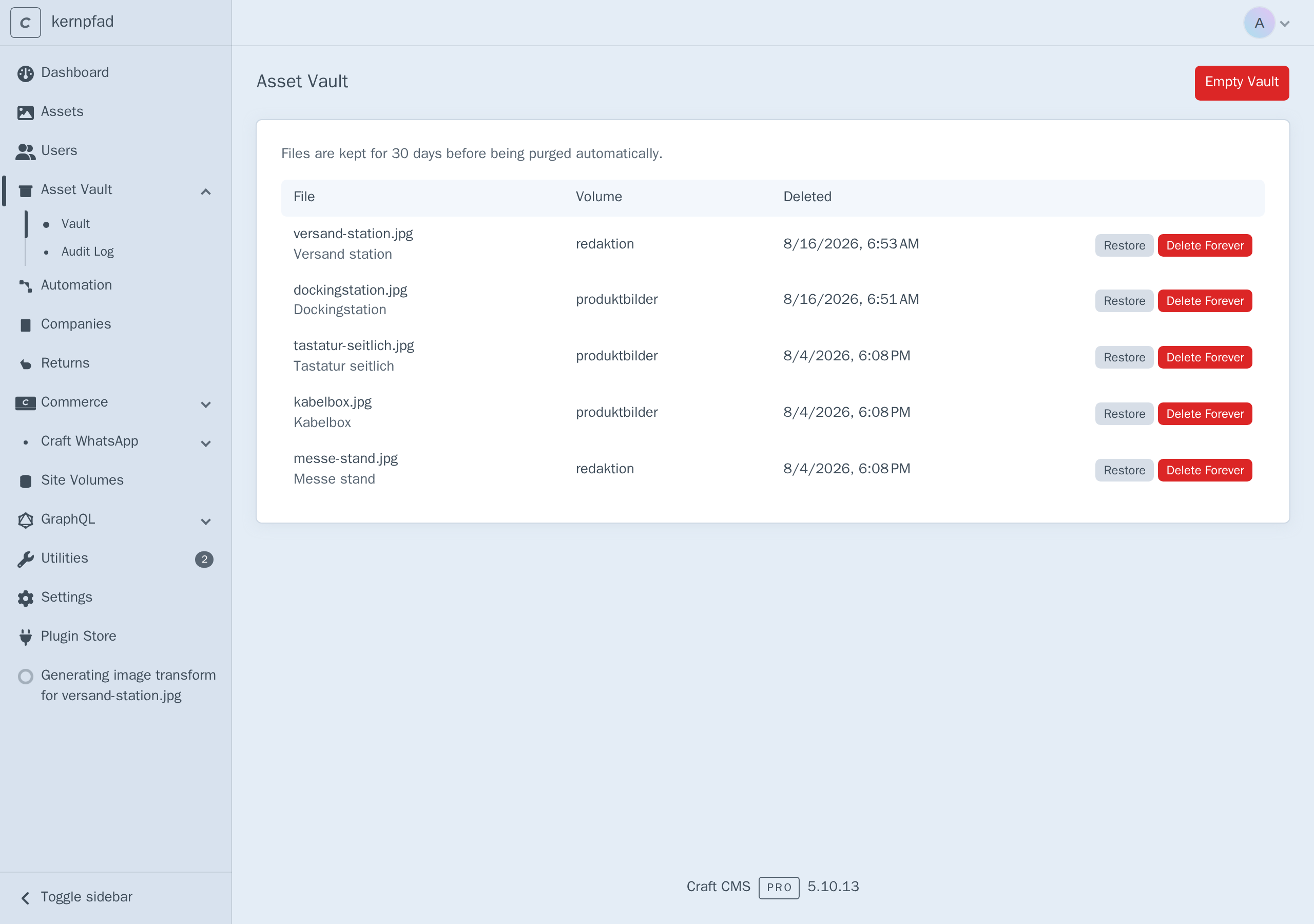
Nothing else needs configuring — the default 30-day retention applies immediately, and the vault starts catching deletions from that moment on. Files deleted before the plugin was installed are gone and cannot be recovered by it.
Using the vault
Delete an asset the way you normally would, from the Assets index or the asset's own page. The file disappears from the volume as before — but now a copy sits in the vault.
Open Asset Vault in the sidebar to see what is recoverable:
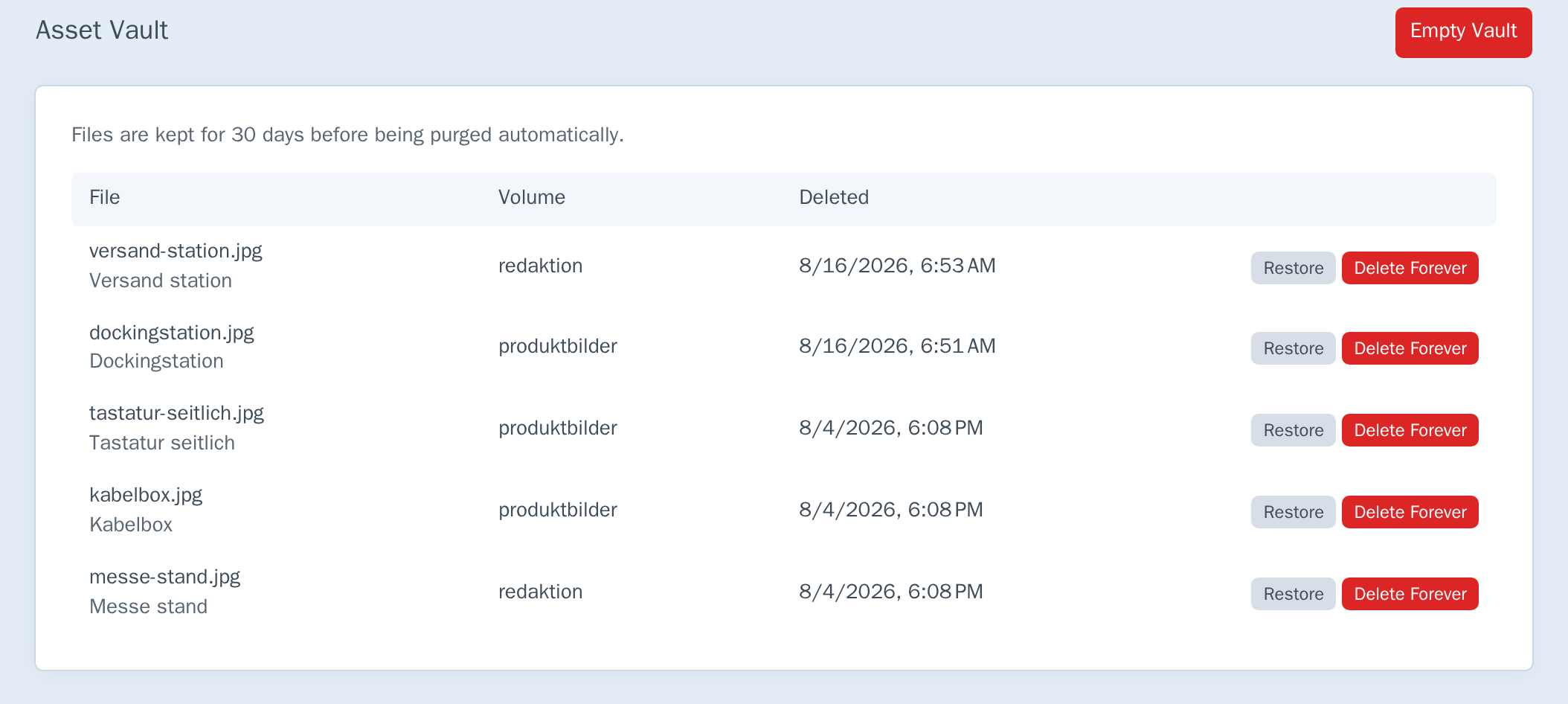
Each row shows the original filename, the asset title underneath it, the volume the file came from, and when it was vaulted. A filename that's still a live link (like Dockingstation and Versand station above) means the original asset still exists — see Archiving without deleting below; a plain filename means the original was actually deleted.
- Restore opens a preview — see Restore preview — rather than restoring immediately.
- Delete Forever removes the vaulted file and its record. There is no recovery after this.
- Empty Vault — the button in the top right — does the same for every entry at once. It asks for confirmation and reports how many files it deleted.
The line above the table tells you which retention rule is currently in effect, so you know how long you have before an entry disappears on its own.
Restore preview
Clicking Restore doesn't restore anything yet — it shows exactly what would happen first:
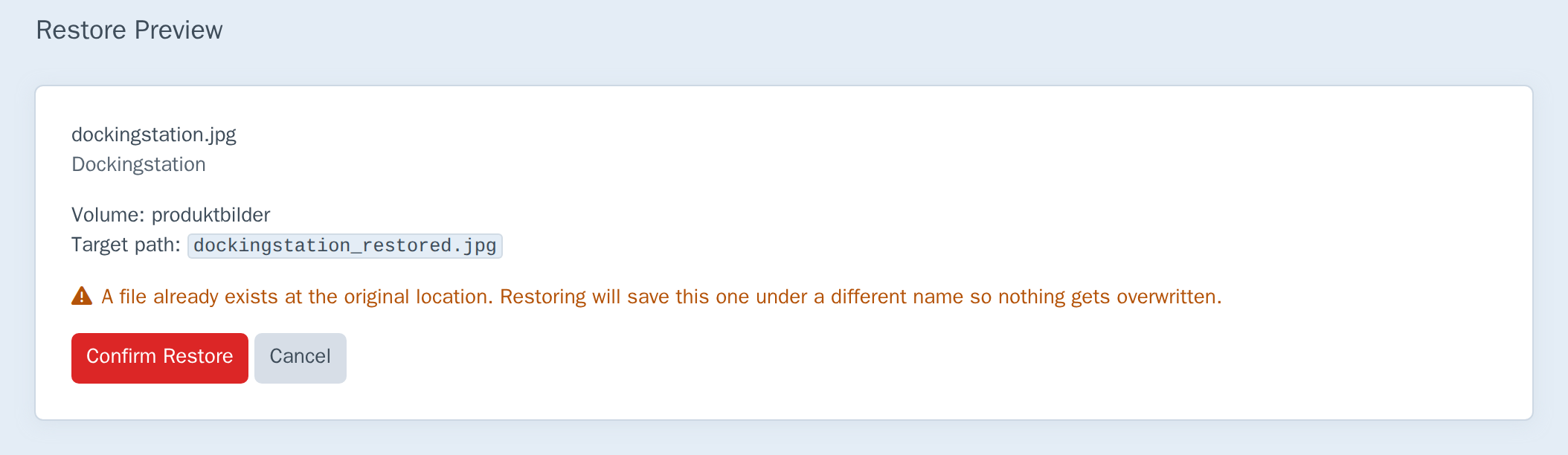
The target path is resolved the same way an actual restore would resolve it, so the preview and the real outcome can never disagree. If a file already occupies the original location — as above, where the live original is still sitting at dockingstation.jpg — the warning tells you the restored copy will land under a different name (_restored, then _restored-2, and so on) rather than overwriting anything. Press Confirm Restore to actually do it, or Cancel to back out without touching anything.
Archiving without deleting
Select one or more assets in the Assets index, open Actions, and choose Archive to Vault — no deletion involved, the originals stay exactly where they are:
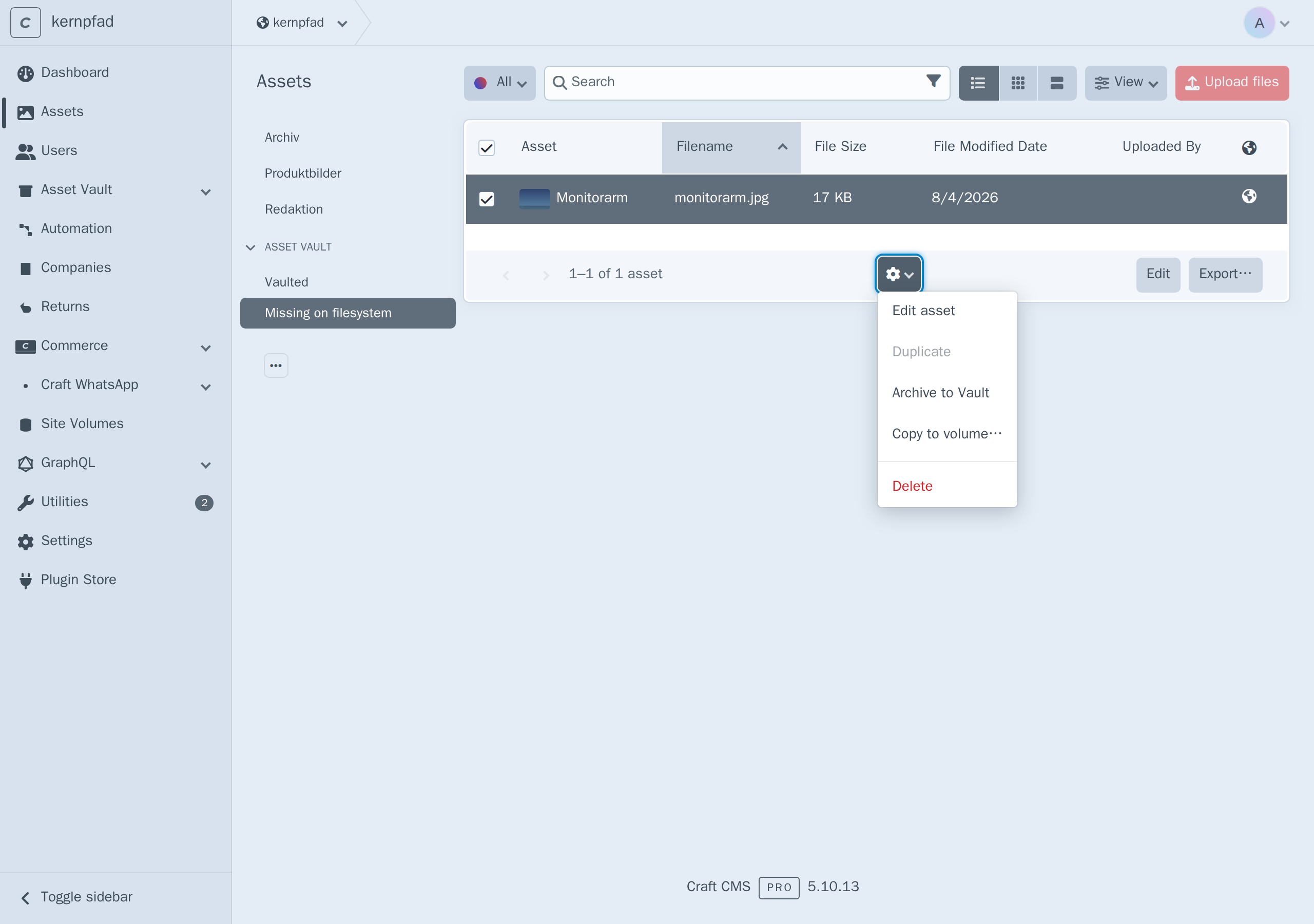
This is for taking a recoverable snapshot before a risky bulk edit, or before handing a volume over to someone else to clean up — not for deleting anything. Selected assets the current user can't save, or that belong to an excluded volume, are silently skipped rather than failing the whole batch. Archiving runs on Craft's queue, so a large selection doesn't hold the Control Panel open.
Archiving the same asset again replaces its previous vault copy rather than creating a second one — there's only ever one vault entry per asset.
Finding vaulted and missing files
Two entries appear under an Asset Vault heading in the Assets index sidebar:
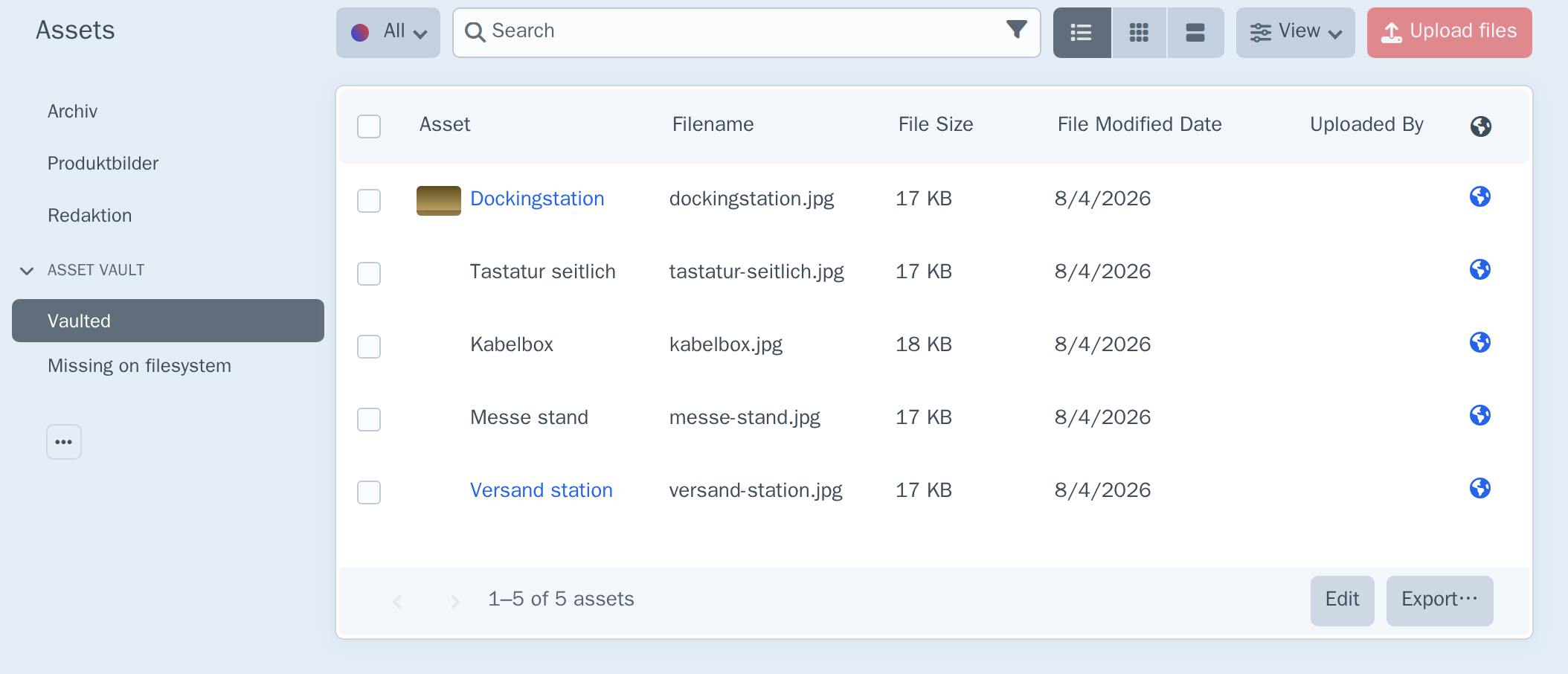
Vaulted lists every asset that currently has a vault copy — both genuinely deleted ones and the still-live results of Archiving without deleting above.
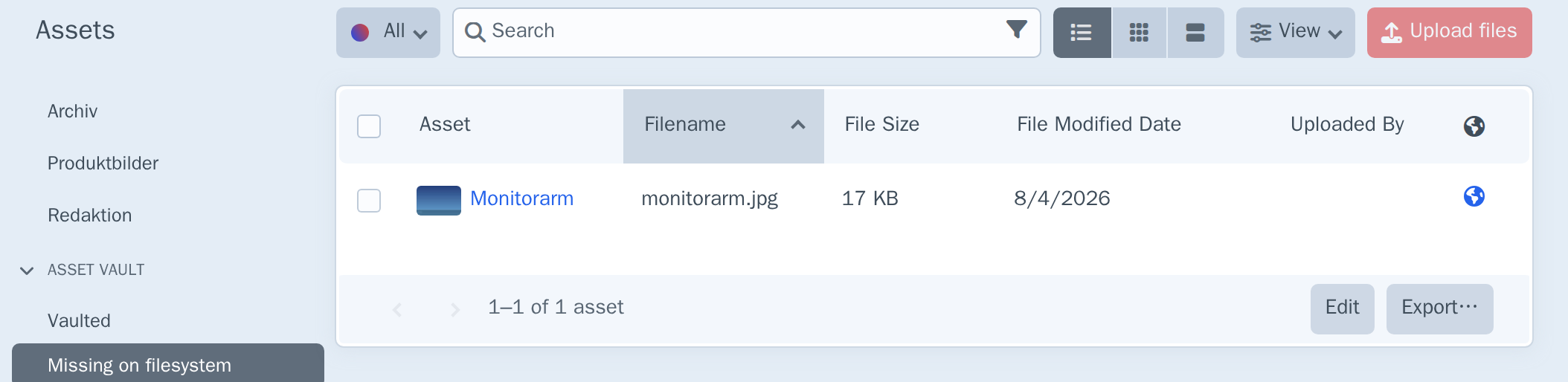
Missing on filesystem lists live assets whose file is gone from the volume — deleted outside Craft, lost in a failed migration, or removed directly from the volume's storage. These results are cached briefly (about a minute) rather than rescanning every volume on each page load, and the cache clears itself after any archive or restore.
Audit Log
A second tab next to Vault records who did what:
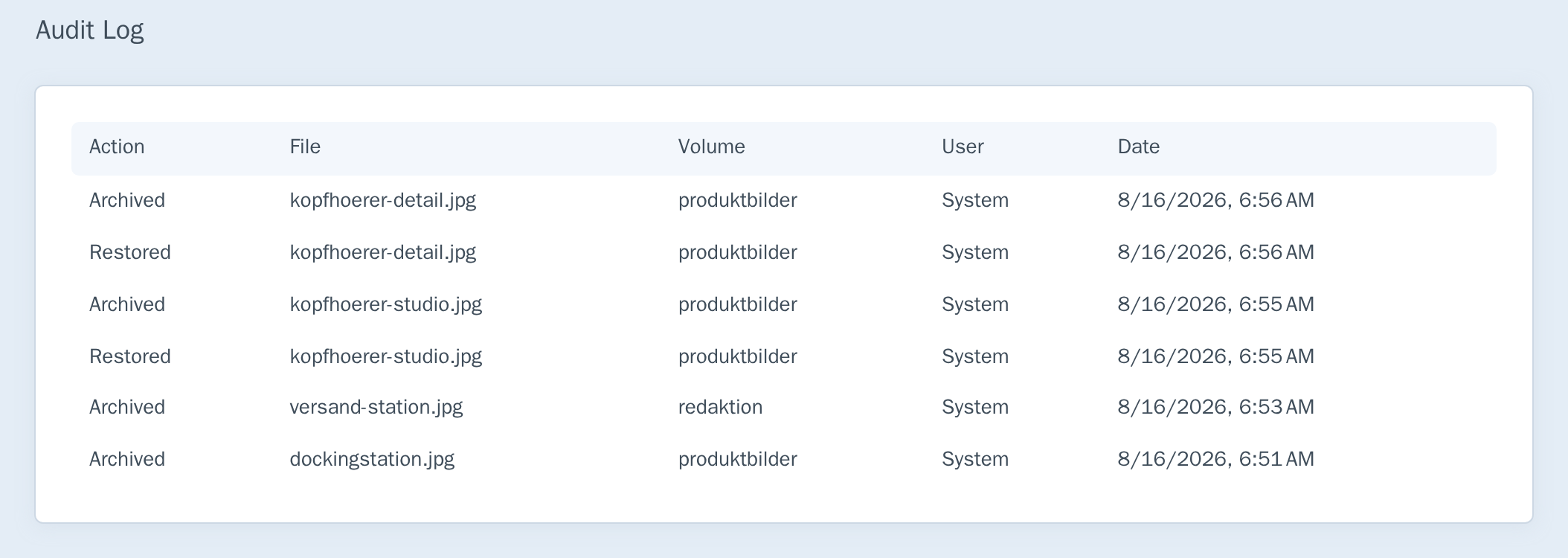
Every archive, restore, and permanent deletion is logged with the filename, volume, who did it, and when — including archives triggered by a normal delete, not just the bulk action. Automatic purges from Craft's garbage collection are logged too, attributed to System rather than whichever user's request happened to trigger GC — crediting a random visitor for a scheduled cleanup they had nothing to do with would misrepresent the log. A failed audit write never blocks or rolls back the archive/restore/delete it was describing; it only logs a warning to Craft's own log.
Purging from the console
php craft asset-vault/purge runs the same retention purge Craft's garbage collection cycle triggers, on demand:
php craft asset-vault/purge
php craft asset-vault/purge --retentionDays=14
Without --retentionDays, it uses the configured Retention Period setting. The flag overrides it for that one run only — the saved setting is untouched. Useful for a dedicated cron entry that shouldn't wait for Craft's GC cycle to happen to run.
Extending via events
VaultService fires cancelable events around both halves of the vault's job:
use kernpfad\assetvault\events\ArchiveEvent;
use kernpfad\assetvault\events\RestoreEvent;
use kernpfad\assetvault\services\VaultService;
use yii\base\Event;

Event::on(
    VaultService::class,
    VaultService::EVENT_BEFORE_ARCHIVE,
    function(ArchiveEvent $event) {
        // $event->asset; set $event->isValid = false to skip vaulting it
        // (the asset still gets deleted for real if a delete triggered this —
        // this only controls whether a recoverable copy is made first)
    }
);

Event::on(
    VaultService::class,
    VaultService::EVENT_BEFORE_RESTORE,
    function(RestoreEvent $event) {
        // $event->vaultItemId; set $event->isValid = false to abort the
        // restore entirely — nothing is copied or indexed
    }
);
EVENT_AFTER_ARCHIVE and EVENT_AFTER_RESTORE fire the same way after the fact ($event->asset on the after-restore event is the newly created element); $isValid has no effect on either, since the action already happened.
Settings
Under Settings → Plugins → Asset Vault:
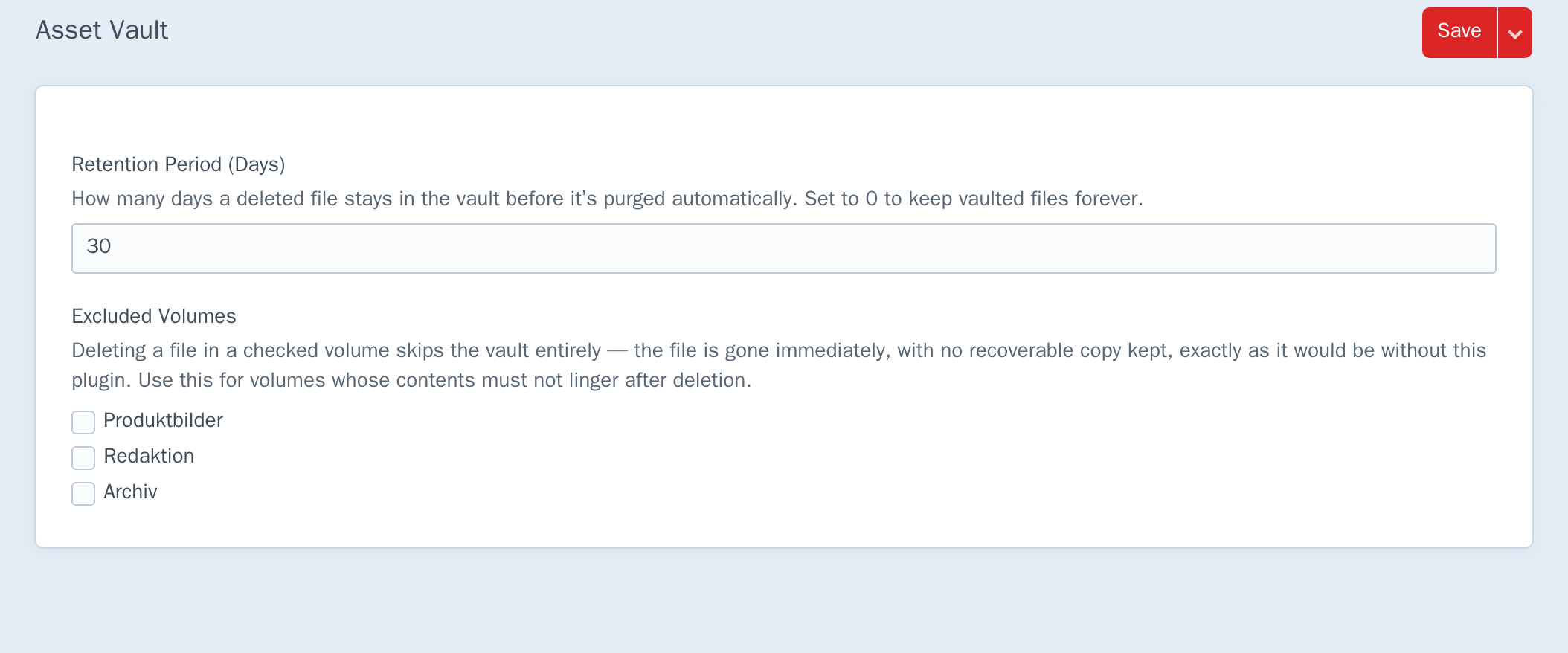
Retention Period (Days)
How long a deleted file stays in the vault. The default is 30. Expired entries are removed during Craft's regular garbage collection, not by a timer of their own — so an entry may outlive its retention period slightly, until the next GC run.
Set this to 0 to keep vaulted files forever. Be deliberate about that: the vault then grows without bound, and every deleted file keeps occupying space in its volume.
Excluded Volumes
Volumes ticked here skip the vault entirely. Deleting a file in them behaves exactly as it would without this plugin installed: the file is gone, with no copy kept anywhere.
This exists for volumes whose contents must not linger after deletion — personal documents, applicant CVs, anything you delete because it should stop existing. If a volume is excluded for that reason, a "recycle bin" quietly retaining copies would defeat the point.
Permissions
One permission, Manage Asset Vault (archive, restore, permanently delete) (assetVault:manage), assignable per user group under Settings → Users → User Groups. It gates opening the Asset Vault section, restoring, permanently deleting, emptying the vault, and the bulk Archive to Vault action — anyone without it doesn't see that action in the Assets index menu at all, and a bulk selection silently drops any asset they aren't allowed to save regardless.
Note what this separates: deleting an asset needs only the usual Craft asset permissions, but managing the vault — recovering a file or proactively archiving one — needs this one. Editors can keep working normally while vault access stays with whoever is meant to have it.
How it works
Asset Vault hooks Craft's EVENT_BEFORE_DELETE_ELEMENT and acts only on assets, and only when the deletion is a soft delete (skipped for excluded volumes). The bulk Archive to Vault action calls the exact same underlying method directly, without going through a delete at all — so a vault entry always means the same thing regardless of which path created it.
Before Craft removes anything, the file is copied to .vault/<volume-id>/<asset-uid>.<ext> through Craft's own filesystem abstraction (Volume::copyFile()). Because it goes through that abstraction rather than PHP's file functions, local volumes and remote ones — Amazon S3, DigitalOcean Spaces — behave identically.
Alongside the file, a database record stores the volume, the original folder, filename, dimensions, title, alt text, focal point and the serialized custom field values. That is what makes a restore recreate the asset, not just recover a loose file. Archiving the same asset a second time replaces its existing vault row and file rather than creating a duplicate.
A restore copies the file back into the volume and then runs Craft's asset indexer over that path — the supported way to turn a file that already exists in a volume into an asset element, without transferring it a second time. Matrix (and nested-entry) field data is remapped to fresh nested-entry IDs before being applied — replaying the original IDs onto a brand-new owner element isn't reliable, so a restore always creates new nested entries with the same content rather than trying to resurrect the old ones. Relation fields drop any target ID that no longer resolves to a real element, so a restore never fails validation over a dangling reference. If the restored file is an image, named image transforms are warmed in a background queue job afterward, so thumbnails are ready without waiting on the first front-end request to generate them on demand.
If saving the vault record fails, the copy that was just made is deleted again, so a failed vaulting does not leave orphaned files behind in the volume.
Limits
Worth knowing before you rely on it:
- Restored filenames can differ. If a file with the same name exists in the target folder, the restored file becomes
name_restored.jpg, thenname_restored-2.jpg, and so on. Nothing is ever overwritten — but the name may not be the one you deleted. The restore preview always tells you which one to expect before you confirm. - A deleted folder sends the file to the volume root. If the original folder no longer exists, the restore falls back to the volume's root folder rather than failing.
- Only soft deletes are caught. Deletions that explicitly bypass the trash are not intercepted — the same way Craft treats every other element type.
- Matrix content round-trips as fresh entries, not the originals. A restored asset's nested entries get new IDs and the same field content — they are not, and cannot be, the literal same nested-entry rows that existed before deletion. Anything that referenced those old nested-entry IDs directly (rather than through the owning asset) won't follow along.
- Relation fields drop dangling targets. If whatever a relation field pointed at was itself deleted in the meantime, that reference is silently omitted from the restored asset rather than failing the whole restore.
- "Missing on filesystem" scans every asset. It's cached for about a minute so opening the Assets index repeatedly doesn't re-scan, but the underlying scan itself checks every asset in every volume — on a very large library, expect it to take a moment the first time.
- It protects deletions, not overwrites. Replacing a file with a new version of itself is not a deletion and does not create a vault entry.